Image Highlighter
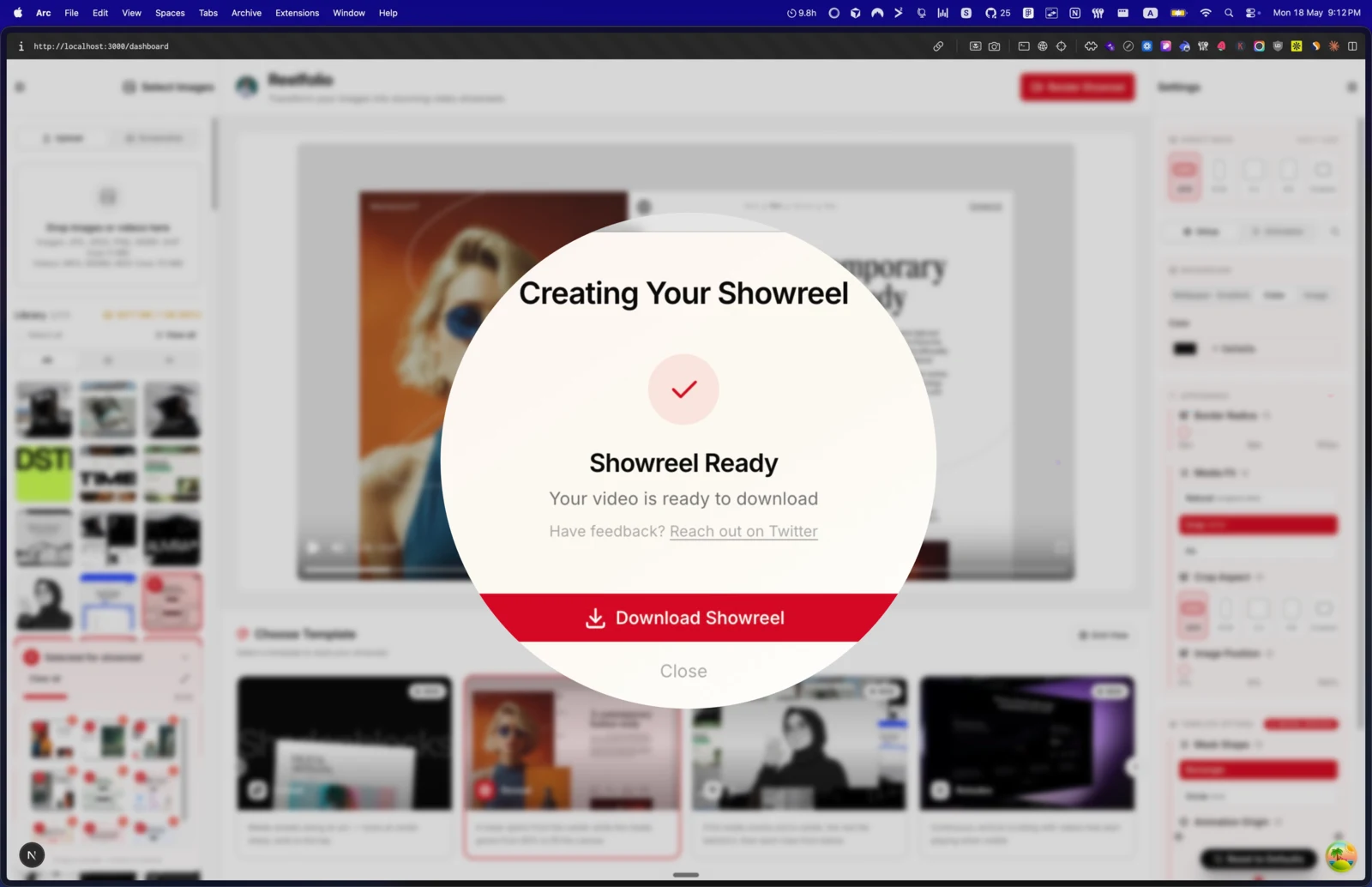
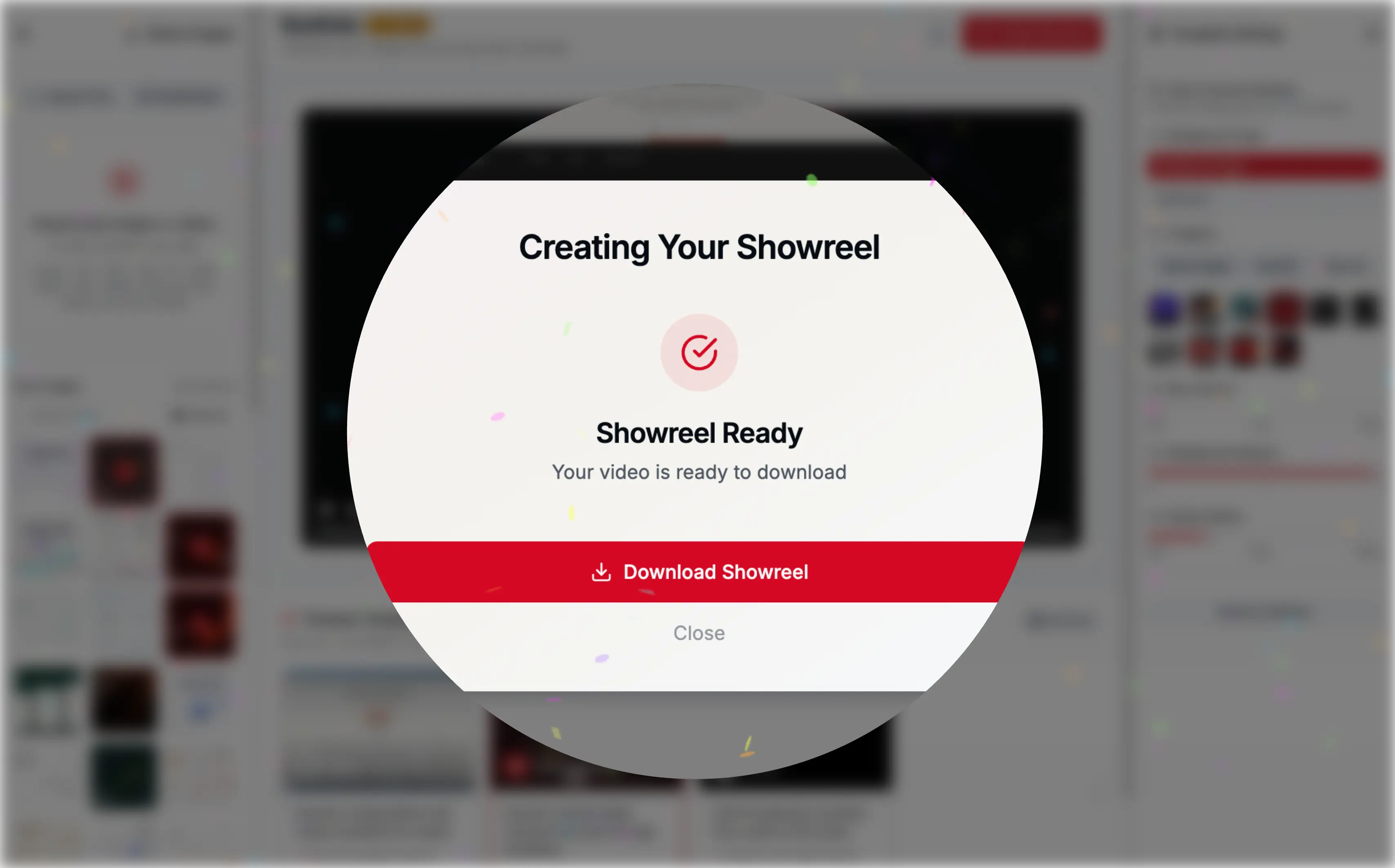
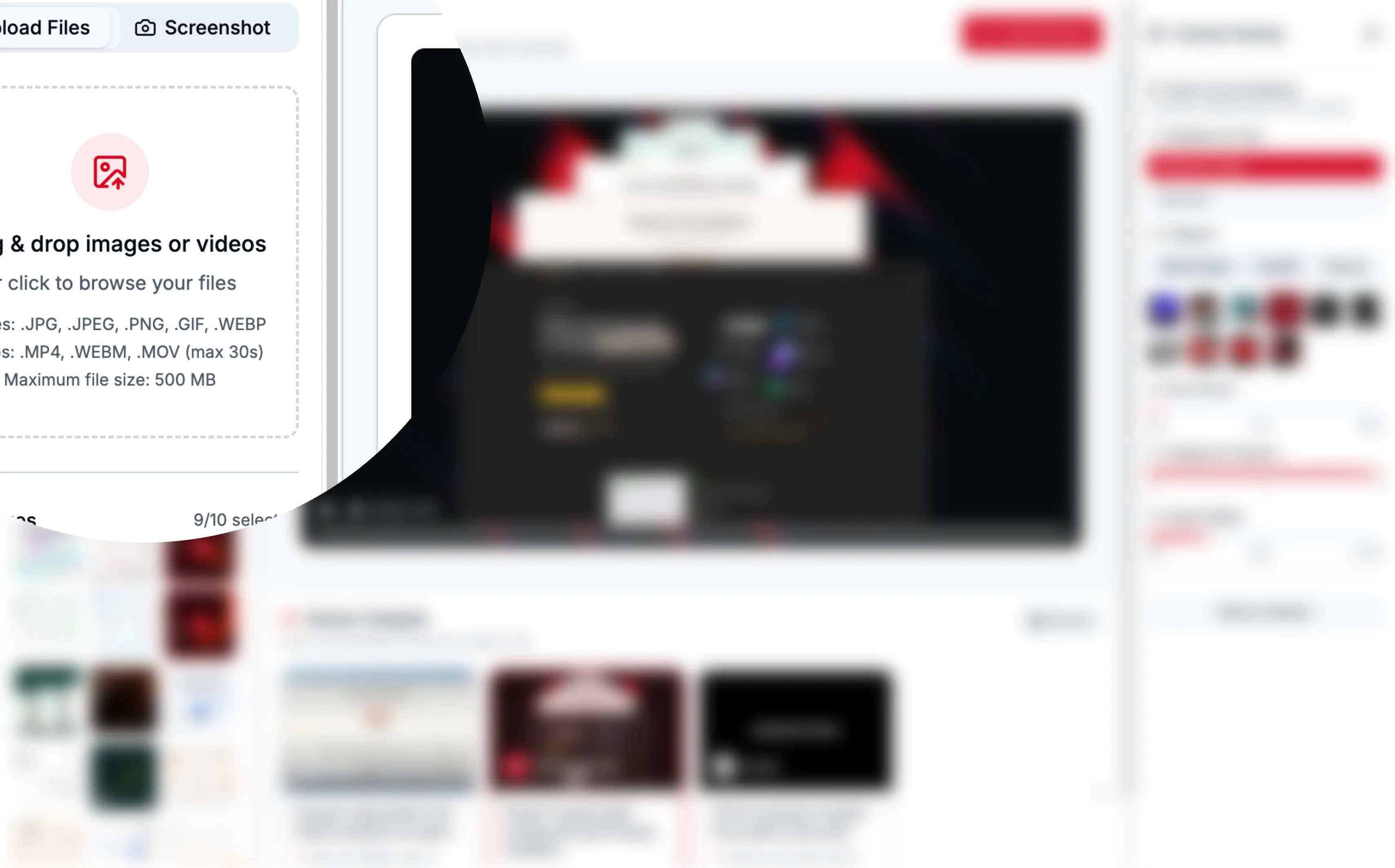
Upload an image, highlight a detail with a lens effect, and download the result.
Click or drag image here
Supports JPG, PNG, WebP
Example Highlights


Why Use Our Tool?
- 1
Upload your image (JPG, PNG, or WebP)
- 2
Choose Lens or Focus mode and position your highlight
- 3
Adjust settings and download instantly
Want to Create Portfolio Videos Like This?
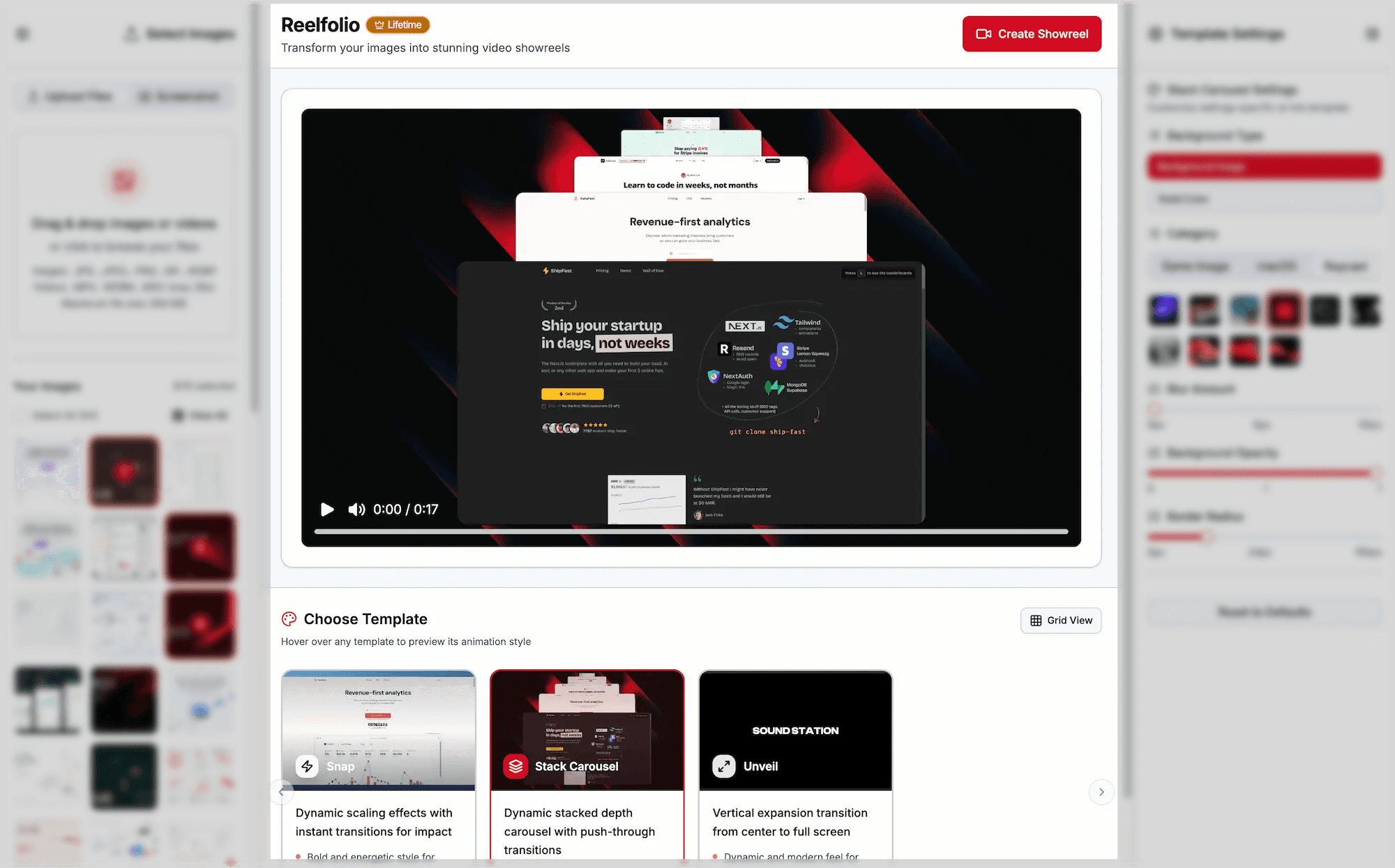
Turn your highlighted images into stunning video portfolios with Reelfolio. Create engaging content in minutes.
Master Image Highlighting
Learn professional techniques to make your images stand out and communicate effectively
Why Image Highlighting Matters
Image highlighting is essential for visual communication. It helps emphasize critical details, guide viewer attention, and deliver your message with clarity and impact.
Choose Your Highlighting Mode
Lens Mode
Create a magnifying glass effect to zoom into specific details
- Perfect for product photography and close-ups
- Adjustable zoom level from 1.1x to 4x
- Customizable lens size for precise control
- Ideal for showcasing intricate details
Focus Mode
Highlight rectangular areas while dimming the rest of the image
- Best for tutorials and step-by-step guides
- Clean, professional appearance
- Variable blur intensity (0-20px)
- Perfect for UI/UX documentation
Visual Enhancement Techniques
Blur Control
Apply strategic blur to non-essential areas, directing focus to what matters most. Adjustable from subtle (2px) to dramatic (20px) for maximum visual impact.
Color Overlays
Add custom color overlays with adjustable opacity to create depth and atmosphere. Choose colors that complement your brand or enhance visual hierarchy.
Zoom & Magnify
Highlight fine details with precision zoom. Perfect for revealing texture, quality indicators, or small text that needs emphasis.
Best Practices by Use Case
Software Tutorials
- Use Focus Mode to highlight clickable buttons or menu items
- Apply moderate blur (8-12px) to reduce visual clutter
- Maintain consistent highlighting style throughout
- Combine with arrows or annotations in your final design
E-commerce & Products
- Use Lens Mode to showcase fabric texture, stitching, or materials
- Apply 2-3x zoom to reveal product quality and details
- Keep background blur subtle (3-5px) to maintain context
- Use neutral overlays to avoid distorting product colors
Presentations & Marketing
- Emphasize key data points with dramatic blur effects
- Use color overlays to match your brand identity (adjust opacity to 60-80%)
- Create visual hierarchy with varying blur intensities
- Avoid over-highlighting—less is often more
Design Feedback
- Use Lens Mode to point out pixel-level details or alignment issues
- Apply high zoom (3-4x) for precision feedback on spacing or typography
- Combine with screen capture tools for markup and annotations
- Use consistent lens sizes across multiple feedback items
Image Highlighting Checklist
- ✓Choose the right mode for your content type
- ✓Ensure sufficient contrast between highlight and background
- ✓Maintain visual hierarchy based on importance
- ✓Test readability at different screen sizes
- ✓Keep your highlighting style consistent
- ✓Avoid excessive effects that distract from the message
- ✓Preview before downloading to ensure quality
- ✓Use browser-based tools for privacy and speed