Render showreels with one API call.
Create an API key, send your images, and get back a finished MP4. Use it from a script, your backend, or an AI agent. No editor needed.
Loupe
Before you start
- You need a paid plan (Starter or Pro). API rendering is off on the free plan.
- Create a key on the API Keys page. You see the full key once, so copy it right away.
- Pass images as public URLs the renderer can fetch (your CDN, S3, or R2), or upload local files first via
POST /api/v1/uploads. Videos aren't supported yet.
Authenticate
Send your key in the x-api-key header on every request. Keep it secret. Anyone with the key can render on your account.
x-api-key: rlf_your_key_hereSave it as an environment variable so the examples below pick it up. Never commit it to git.
export REELFOLIO_API_KEY="rlf_your_key"REELFOLIO_API_KEY=rlf_your_keyQuickstart
Start a render, then poll until it is done.
1. Start a render
curl -X POST https://reelfolio.io/api/v1/render \
  -H "x-api-key: $REELFOLIO_API_KEY" \
  -H "content-type: application/json" \
  -d '{
    "id": "CometTemplate",
    "scale": 1,
    "inputProps": {
      "images": [
        "https://picsum.photos/seed/a/1280/800",
        "https://picsum.photos/seed/b/1280/800"
      ]
    }
  }'
You get back:
{
  "renderId": "abcd1234",
  "status": "rendering",
  "statusUrl": "https://reelfolio.io/api/v1/render/abcd1234"
}
2. Poll for the result
Call statusUrl every 2 seconds until the status is done.
curl "https://reelfolio.io/api/v1/render/RENDER_ID" \
-H "x-api-key: $REELFOLIO_API_KEY"// still rendering
{ "status": "rendering", "progress": 0.42 }
// finished
{ "status": "done", "url": "https://cdn.../video.mp4", "size": 5242880 }
// failed
{ "status": "error", "error": "..." }Endpoints
POST /api/v1/renderStart a render. Body: id, inputProps.images (required), inputProps.settings (optional, merged over the template defaults), and scale (optional). Returns renderId and statusUrl.
GET /api/v1/render/<renderId>Check progress. Returns a status of rendering, done (with url and size), or error.
POST /api/v1/uploadsUpload a local image (raw bytes with its content-type); returns { url } to put in inputProps.images. Only needed for images that aren't already online.
Full example
Render and wait for the URL in one script. Works in Node 18+ (built-in fetch).
const API = "https://reelfolio.io/api/v1";
const KEY = process.env.REELFOLIO_API_KEY;

// 1. Start the render (settings are optional, they fall back to defaults)
const start = await fetch(API + "/render", {
  method: "POST",
  headers: { "x-api-key": KEY, "content-type": "application/json" },
  body: JSON.stringify({
    id: "CometTemplate",
    scale: 1,
    inputProps: {
      images: [
        "https://picsum.photos/seed/a/1280/800",
        "https://picsum.photos/seed/b/1280/800",
      ],
      settings: { text: "My Work" }, // override only what you want
    },
  }),
}).then((r) => r.json());

if (start.error) throw new Error(start.error);

// 2. Poll every 2s until done
let result;
while (true) {
  await new Promise((r) => setTimeout(r, 2000));
  result = await fetch(start.statusUrl, {
    headers: { "x-api-key": KEY },
  }).then((r) => r.json());
  if (result.status === "done" || result.status === "error") break;
  console.log("progress:", Math.round((result.progress ?? 0) * 100) + "%");
}

if (result.status === "error") throw new Error(result.error);
console.log("Video:", result.url);Copy a render from the app
You don't have to write the JSON by hand. Build a video in the editor, then copy its exact POST /api/v1/render body and drop it into a script.
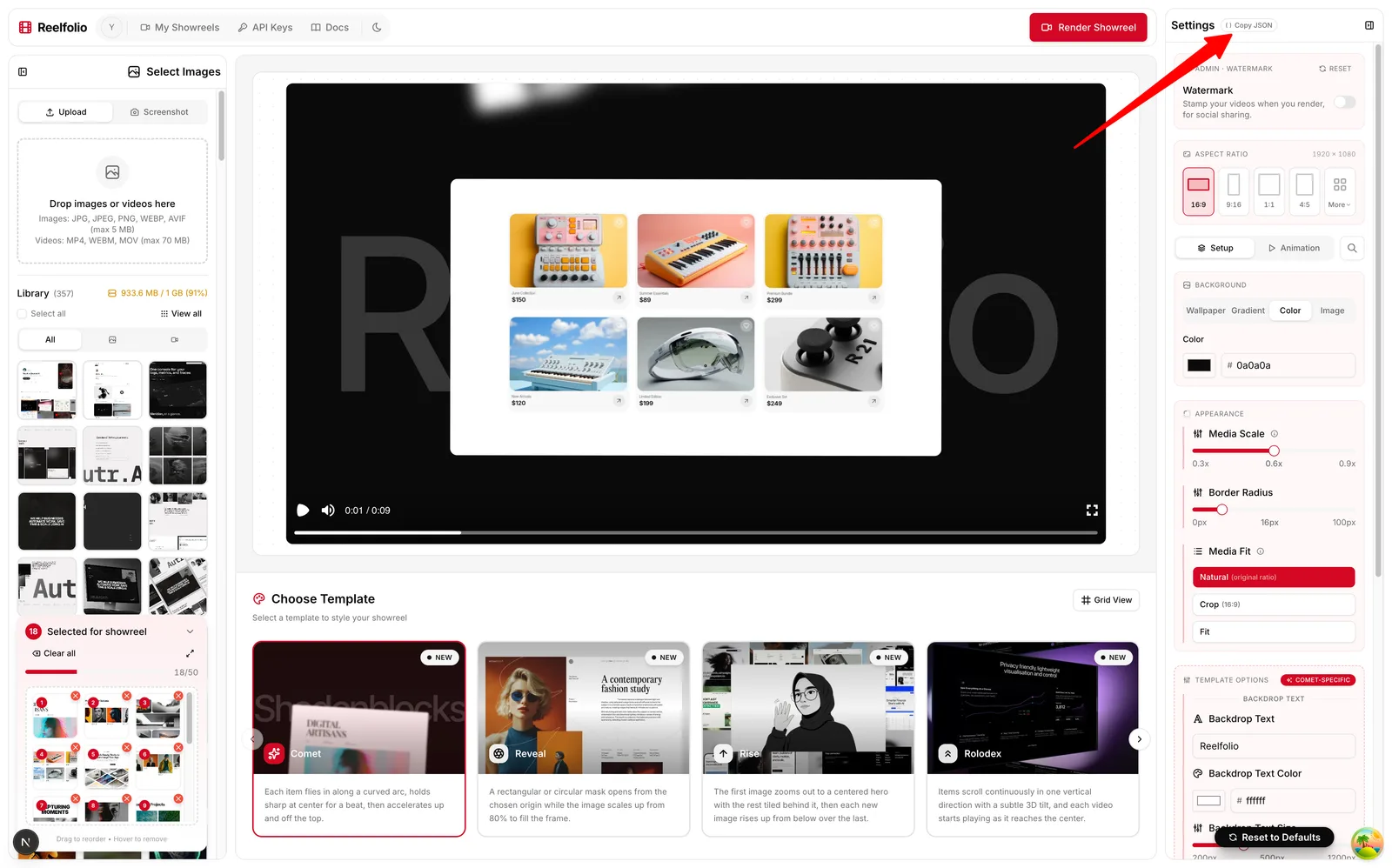
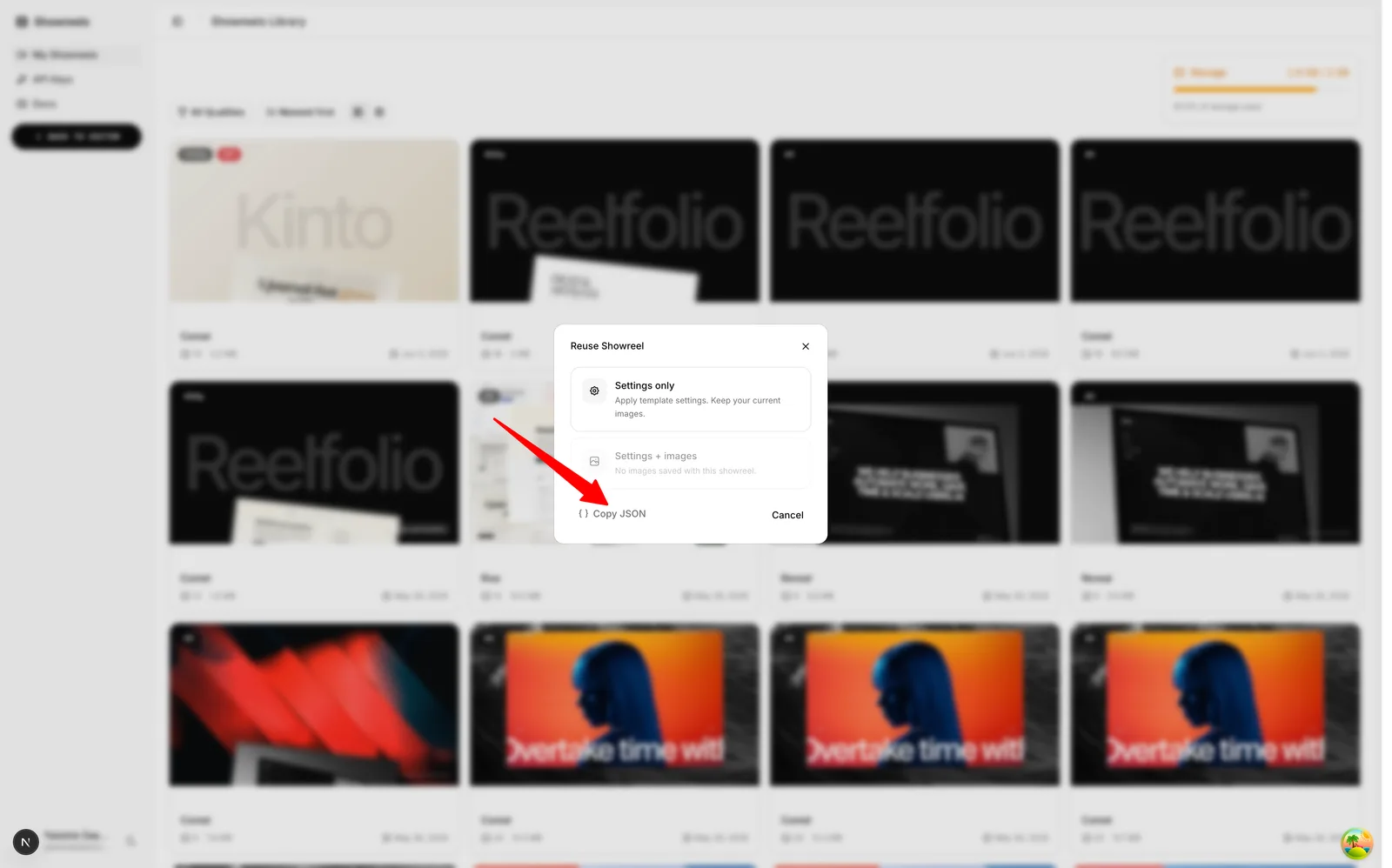
Template reference
245 templates. Showreels tell a story from start to finish; loops run seamlessly with no start or end. Open one for its id, its settings and a complete request body you can send as is.
Quality & scale
The scale field sets the output resolution. Default is 1 (1080p).
| scale | Resolution | Notes |
|---|---|---|
0.45 | 480p | Fast preview quality |
0.67 | 720p | Good for quick exports |
1 | 1080p | Optimized for social media |
2 | 4K | Best for detailed visuals |
Common settings
These work on every template (defaults vary per template, see the example on each template's page).
| Setting | Type | Default | What it does |
|---|---|---|---|
aspectRatio | enum | 16:9 | Output canvas shape. Use "custom" with customWidth/customHeight for an exact size.One of: 16:9, 9:16, 1:1, 4:5, 21:9, 4:3, 5:4, 3:2, 2:3, custom |
backgroundType | enum | image | The background is one of three modes (pick one). Only that mode’s settings apply: "color" uses backgroundColor; "image" uses backgroundLibraryCategory + backgroundLibraryImage; "gradient" uses backgroundGradientStart/End (+ Noise).One of: color, image, gradient |
backgroundColor | color | #0a0a0a | Hex color used when backgroundType is "color". |
backgroundLibraryCategory | enum | macos | Where the image comes from when backgroundType is "image": a built-in wallpaper set ("macos", "raycast", "sunset", "mesh"), "custom" for your own image, or "same" to blur the first media in the reel.One of: same, macos, raycast, sunset, mesh, custom |
backgroundLibraryImage | string | "" | The background image URL when backgroundType is "image": one from the library (see the gallery below), or with "custom" any public HTTPS image URL of your own. |
blurAmount | number | 0 | Background blur in pixels. |
backgroundOpacity | number | 1 | Background opacity, 0 to 1. |
borderRadius | number | 0 | Corner radius on each media item, in pixels. |
backgroundGradientStart | color | #0a0a0a | Gradient start color when backgroundType is "gradient". |
backgroundGradientEnd | color | #1a1a1a | Gradient end color when backgroundType is "gradient". |
backgroundGradientNoise | string | false | Film grain over the gradient or mesh background. Boolean (on/off) or a 0–100 strength percent. |
customWidth | number | 1920 | Canvas width in pixels when aspectRatio is "custom". |
customHeight | number | 1080 | Canvas height in pixels when aspectRatio is "custom". |
cropAspectRatio | enum | 16:9 | Crop slot shape for templates with mediaFit "crop". Under mediaFit "natural" nothing is cut: every piece keeps the ratio it was uploaded with, and the layout is spaced for the shape most of the reel is.One of: 16:9, 9:16, 1:1, 4:5, 21:9, 4:3, 5:4, 3:2, 2:3, custom, natural |
Set backgroundType to image and pass any of these as backgroundLibraryImage. Open one to grab its URL.












Render with AI
Copy the reference as Markdown and paste it into ChatGPT, Claude, Cursor, or your editor's AI. It has the endpoints, auth, the common settings and every template, so the AI can build the calls for you. You can also fetch it at /docs/llms.txt. It is generated live, so it is always up to date.
It is deliberately small. A render needs only a template id and images, so the AI gets every id with a line on what it looks like, and fetches /docs/templates/<id>/llms.txt for the settings of the one it picks. If yours cannot fetch a URL, hand it /docs/llms-full.txt instead, which inlines every template and setting.
Then ask in plain language, for example:
Render a Comet showreel from these images:
https://example.com/1.jpg, https://example.com/2.jpg, https://example.com/3.jpgErrors
Errors return an HTTP status and { "error": "message" }.
| Status | Meaning |
|---|---|
400 | Invalid body, unknown template id, or a video URL. |
401 | Missing, invalid, or expired API key. |
403 | Plan does not include API rendering, or storage limit reached. |
404 | Render not found (wrong renderId). |
413 | Uploaded image is too large (max 64 MB). |
429 | Over a fair-use ceiling: 5 renders in progress, 100 render starts or 60 uploads in 24 hours. Wait for the Retry-After header, then retry. |